
1. Read individual dates on the calendar
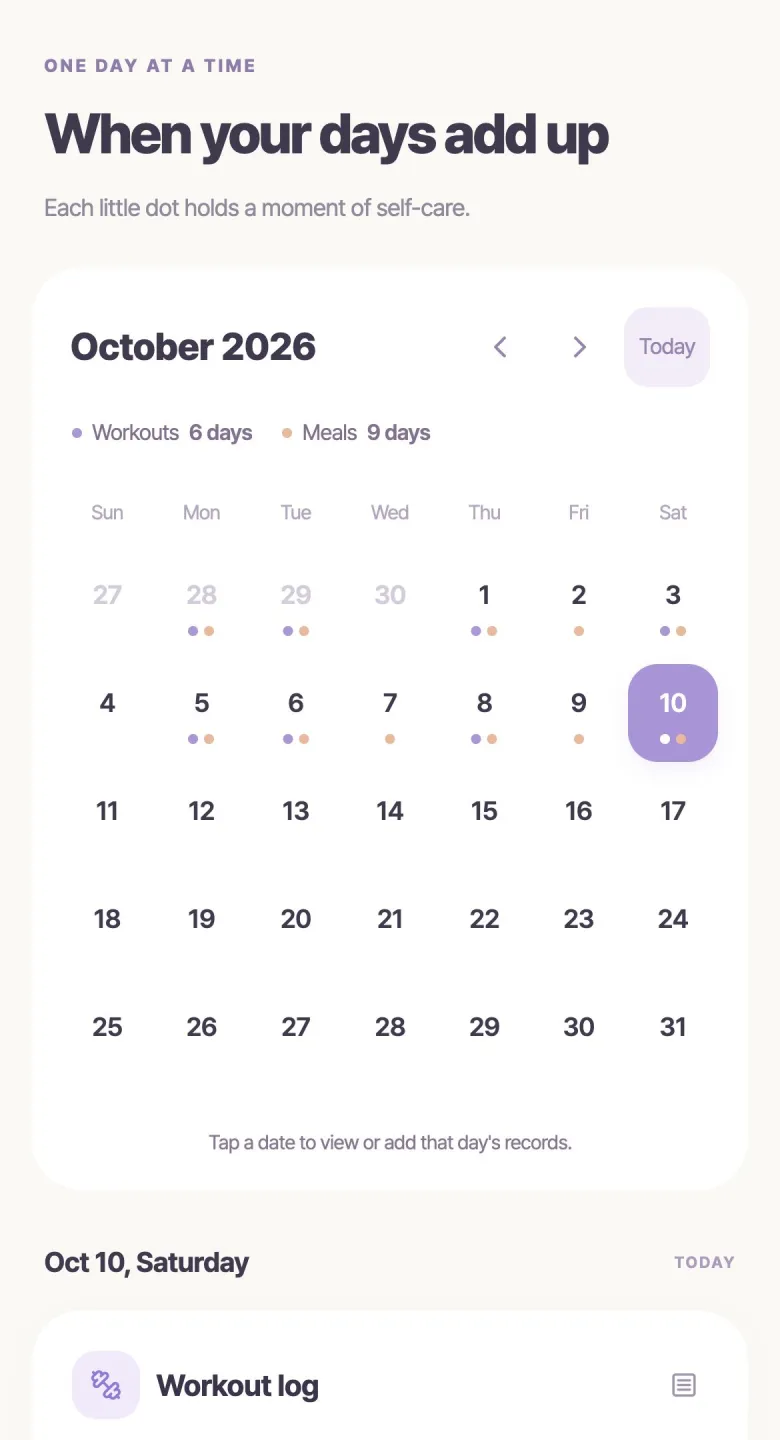
Open a memorable day and an ordinary day. Read the workout details and any meals or weight you saved alongside them. Looking at the source entries first makes the later charts easier to interpret.
A blank date does not prove that no workout happened; you may simply have forgotten to log it. Add older details only when you clearly remember them. The calendar shows the records saved in the app.
2. Separate logged days from entry counts
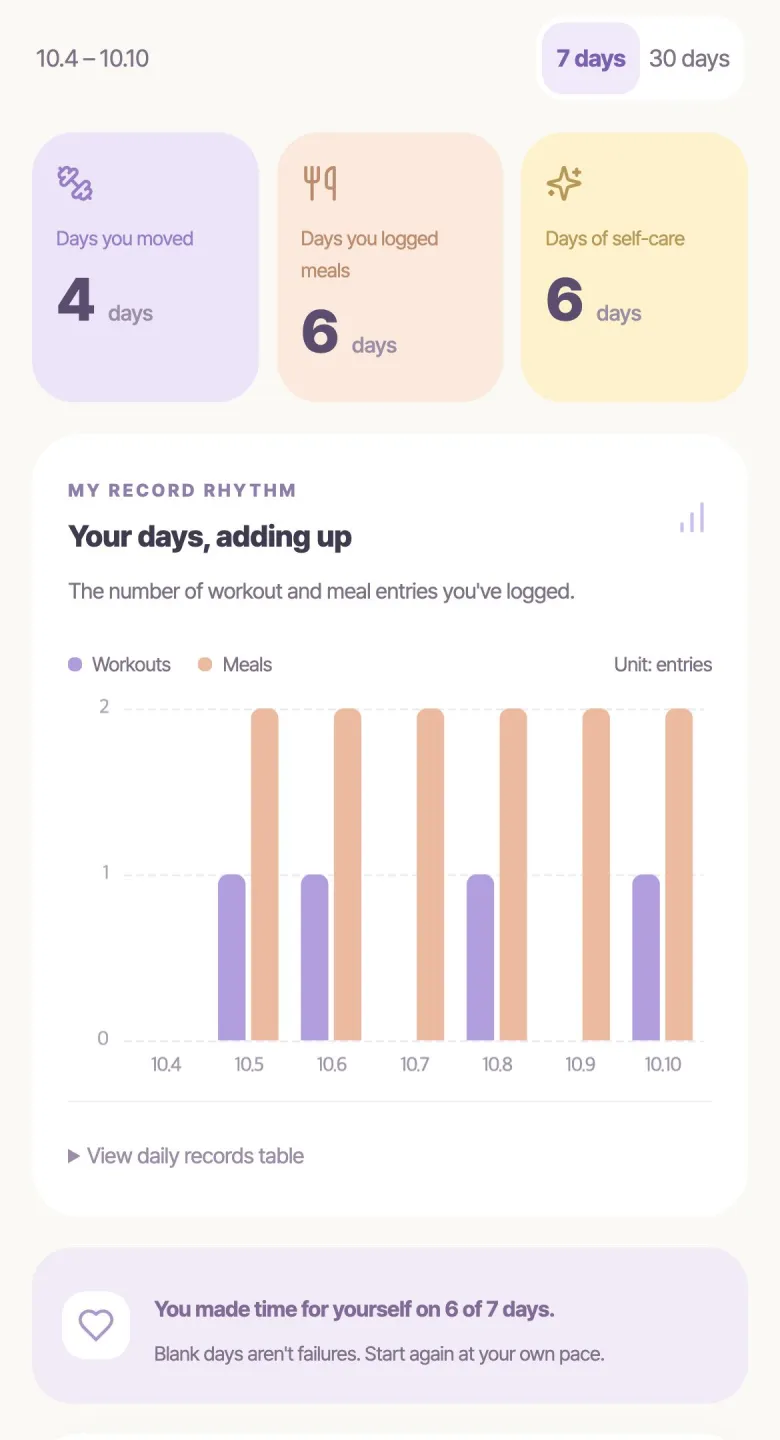
A morning walk card and an evening workout card make two entries on one logged day. Putting squats and stretching in one card makes one entry. Card counts are not exercise-type counts either.
Daily Body’s 7- and 30-day rhythm charts show daily workout and meal entry counts. A taller bar does not mean a longer or harder workout. Overall logged-day totals can include weight-only days, so check the workout-specific measure when you want workout logging days.
| Saved records | Days with workout logs | Workout cards |
|---|---|---|
| Morning walk and evening stretch in separate cards | 1 day | 2 |
| Walk and stretch together in one card | 1 day | 1 |
| Weight entry only | 0 days | 0 |
3. Use keywords to find the context behind a pattern
If “Walking” appears often, revisit the titles and dates around it. Repeated “Lunch walk” titles may suggest a convenient moment for logging. Use the keywords as a route back to the circumstances, not just a ranking.
The advanced Keyword Trends report shows phrases that are new or recorded more often in the recent 30 days. Different wording such as “Walk” and “Walking” may be grouped separately. Check whether a change reflects different activity or simply different labels.
4. Compare matching parts of each month
Comparing this month through the 16th against all of last month gives you unequal periods. Compare the 1st–16th of both instead. Daily Body’s month comparison uses the same period of the previous month to show changes in workout, meal, and weight records.
Even matched periods may differ because of travel, missed entries, or a new logging style. More saved cards do not establish more exercise volume or explain a change in your body.
5. Check report access and date ranges
Workout, meal, and weight logging, the calendar, and basic graphs are free. Start with the 7- or 30-day view. A calendar month and the most recent 30 days are not always the same range, so read the dates displayed on the screen.
For advanced reports such as month comparison and Keyword Trends, completing an ad unlocks that individual report for 24 hours. Chakchak Plus is a one-time purchase offering ad removal and access to all advanced reports; check current purchase terms in the app. Reports also need enough underlying records to show a comparison.
6. Finish with one action for next month
Write down one activity that recurred, one situation where logging was difficult, and one adjustment to try. This is a reflection to keep in your own notes or planning tool, rather than an automatic goal-setting feature in the app.
Make it specific: “After a lunch walk, record the walking keyword when I return to my desk.” At the next review, check whether you tried that action. Keep changes in your activity separate from changes in how consistently you recorded it.
Return to your records with Daily Body
Daily Body brings date-based entries, a calendar, and 7- or 30-day charts together, making it convenient to reread what you saved. Advanced reports are available when you want a closer comparison and meet the access conditions. Open one entry from this month, then choose one small action to carry into the next.